How it works
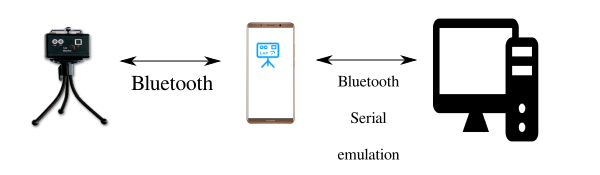
The PC is not directly connected to the LapMonitor
A phone/tablet is connected at the same time using bluetooth to the LapMonitor and to a PC that run the race management software (Zround for exemple)
The tablet/phone act as a gateway to translate LapMonitor language to AMB protocol in order that the race management software understand the lap information received
First configuration with windows 10
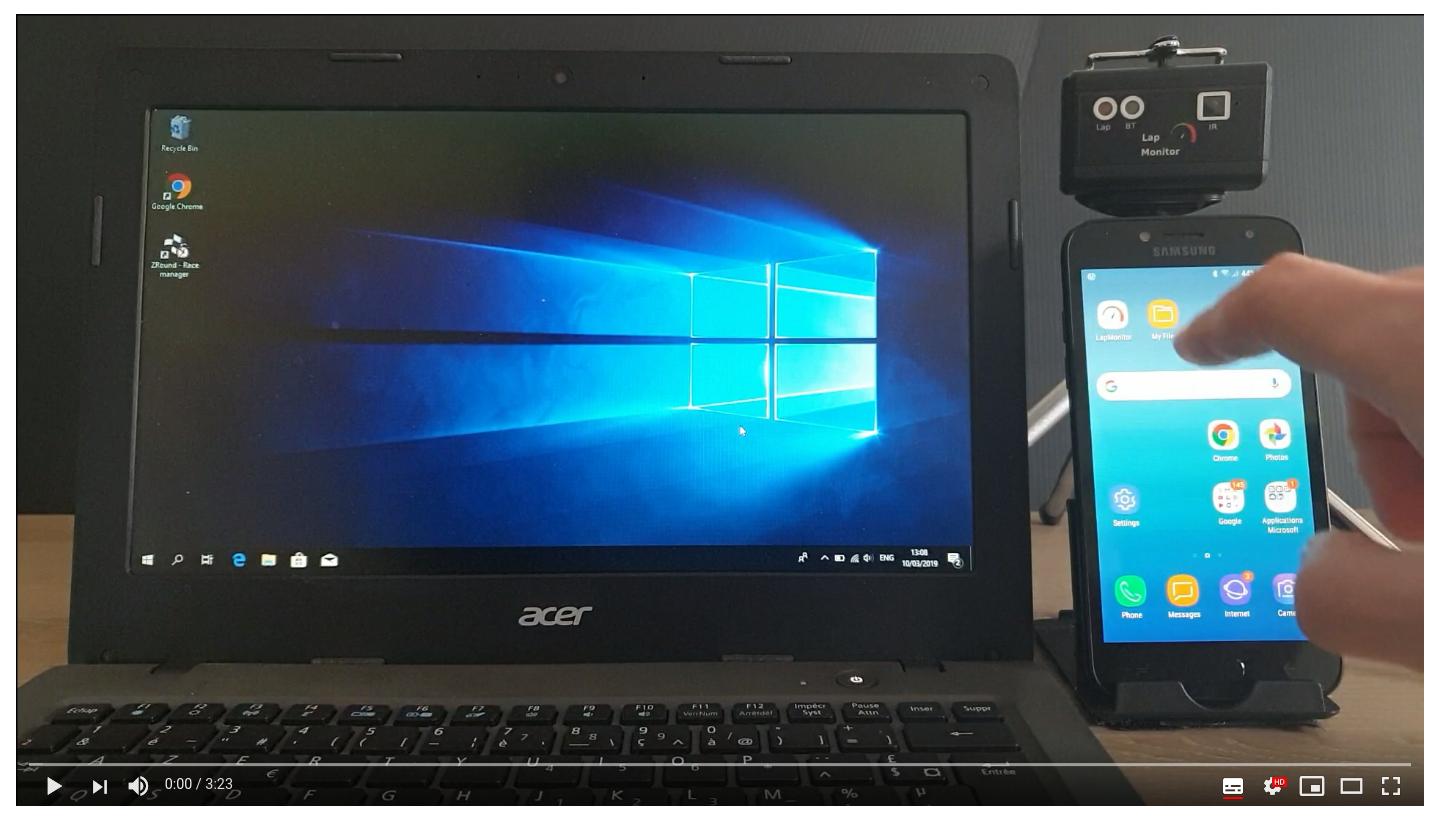
Video with step by step to configure PC and phone
Steps list
- 0) Install Zround on windows 7 or 10 computer (http://www.zround.com/)
- 1) Install LapMonitor server app on phone: http://lapmonitor.com/files/shared/apps/lapmonitor_server/lapmonitor_serv.v.0.31.apk
- 2) Start LapMonitor server app
- 3) Connect to LapMonitor server to LapMonitor
- 4) Pair PC and phone/tablet bluetooth (it is Mandatory that LapMonitor server is connected to LapMonitor before to doing this step)
- 5) Check which "com?" port is used to comunicate with LapMonitor server
- 6) Start Zround
- 7) Configure lap counter settings
- 8) Select AMBrc
- 9) Set "com?" port and click connect
- 10) Start a training
Here is a video that shows all steps for Windows 7
https://www.youtube.com/watch?v=wcD1W5nZFLw
PC software application
Zround can be downloded using this link:
Zround user Manual:
http://www.zround.com/download/get/12/zround-quick-start-guide
Usage after first configuration
It is mandatory to launch LapMonitor server app and connect to LapMonitor before launching Zround app
Steps list:
- 1) Start LapMonitor server app
- 2) Connect to LapMonitor server to LapMonitor
- 3) Start Zround
- 4) Start a training/race